
Use the queue and playlists
The queue decides what plays next. Playlists collect episodes you want to keep together. Both have their own page in the PodNotes view: in a narrow view, select Queue or Playlists in the Library, and in a wide view, select them in the list on the left. To add podcasts and play episodes, see Add and play podcasts.
Manage the queue
Section titled “Manage the queue”The Queue page lists what plays next and the total time left. The automatic queue is on by default. When an episode ends, the first episode in the queue starts. When you select another episode, the one you switch away from goes to the top of the queue, unless it has ended. To fill the queue only by hand, turn off the automatic queue.
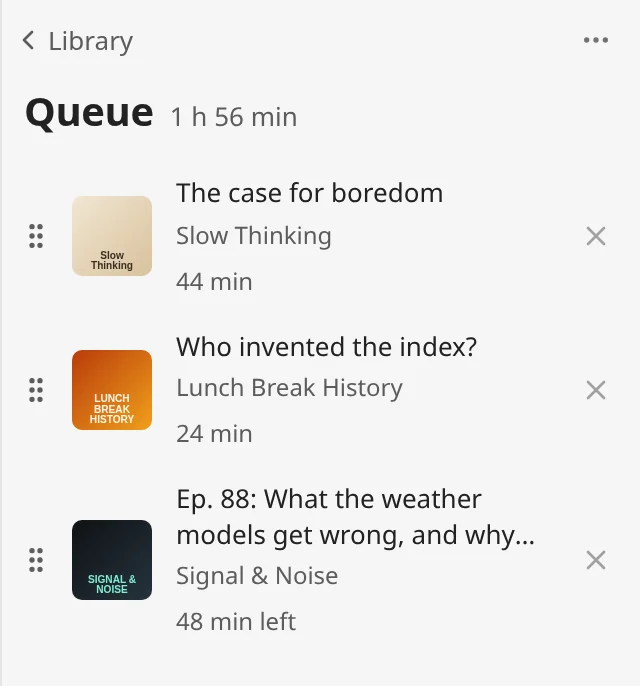
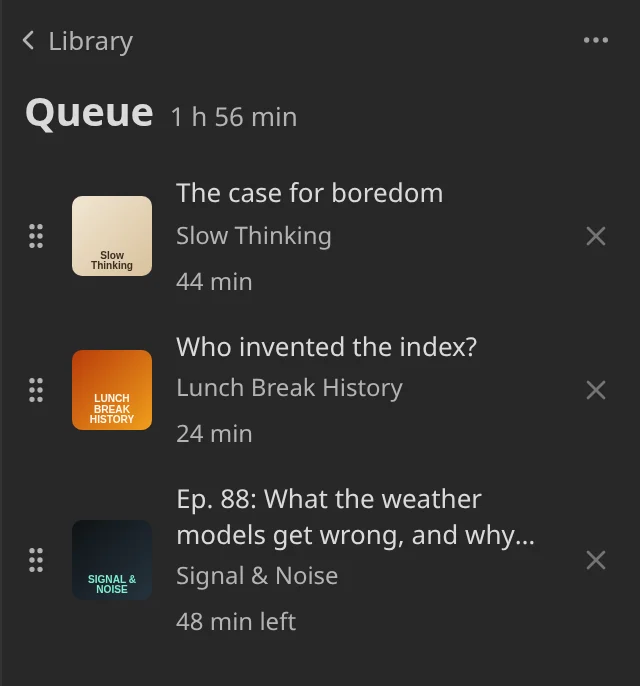
To add an episode to the end of the queue:
- Right-click the episode, or select the three-dot button at the end of its row.
- Select Add to queue.
When an episode ends, PodNotes removes it from the queue. Episodes on the Queue page and in Up next have no three-dot button, so right-click one to open its menu. On a phone, open the episode’s menu from another list that holds it, such as its podcast’s page, or use Episode options in the full player while the episode is loaded. The full player’s Up next panel shows the same queue. See Up next.
Reorder the queue
Section titled “Reorder the queue”- On the Queue page, drag an episode by its grip, the six dots on its left. On a phone, touch the grip and drag.
- Drop the episode where it should play.
To use the keyboard, press Tab until an episode’s grip has focus, then press Up or Down to move the episode one place. Press Escape during a drag to cancel it. PodNotes: Reorder Queue opens the Queue page from the command palette.
This clip, on a phone, drags an episode by its grip to the top of the queue, then opens Up next in the full player, which lists the new order:
Turn off the automatic queue
Section titled “Turn off the automatic queue”With the automatic queue off, PodNotes stops adding the episode you switch away from, and when an episode ends, the next one in the queue does not start.
- On the Queue page, select Queue options, the three-dot button at the top right.
- Select Queue episodes I switch away from to remove its check mark.
The same setting is under Playback in Settings → PodNotes.
To empty the queue, select Clear queue in the same menu. To bring the episodes back, select Undo in the notice.
Collect episodes in playlists
Section titled “Collect episodes in playlists”The Playlists page lists Favorites first, then your own playlists, each with its number of episodes. Select a playlist to see its episodes. Local files and Played have their own pages. See Downloads and local files and Browse episodes.
To add an episode to Favorites:
- Right-click the episode, or select the three-dot button at the end of its row.
- Select Add to Favorites.
To make your own playlist:
- On the Playlists page, select New playlist.
- In Playlist name, type a name, such as
Commute. - Select Create.
To add an episode to it:
- Right-click the episode, or select the three-dot button at the end of its row.
- Select Add to playlist.
- Select Commute.
A playlist that holds the episode has a check mark in that list. To make a new playlist that holds the episode, select New playlist in the same list. When an episode ends, PodNotes removes it from your playlists. It stays in Favorites.
Remove an episode from a list
Section titled “Remove an episode from a list”- From the queue, select the cross on the right of the episode’s row. Remove from queue in the episode’s menu does the same.
- From Favorites, select Remove from Favorites in the episode’s menu.
- From your own playlist, select Add to playlist in the episode’s menu, then select the playlist, which has a check mark.
Delete a playlist
Section titled “Delete a playlist”- On the Playlists page, right-click the playlist. On the playlist’s own page, select Playlist options instead.
- Select Delete playlist.
To bring the playlist back, select Undo in the notice within seven seconds. The episodes stay in their podcasts and in your other lists. You cannot delete Favorites.